
Your Account
Your Fasty account is your Second Life avatar. One account opens everything: your own store, the stores whose team you are part of, and your blogger area. You sign in with your Second Life username and a password you choose.
Create your account
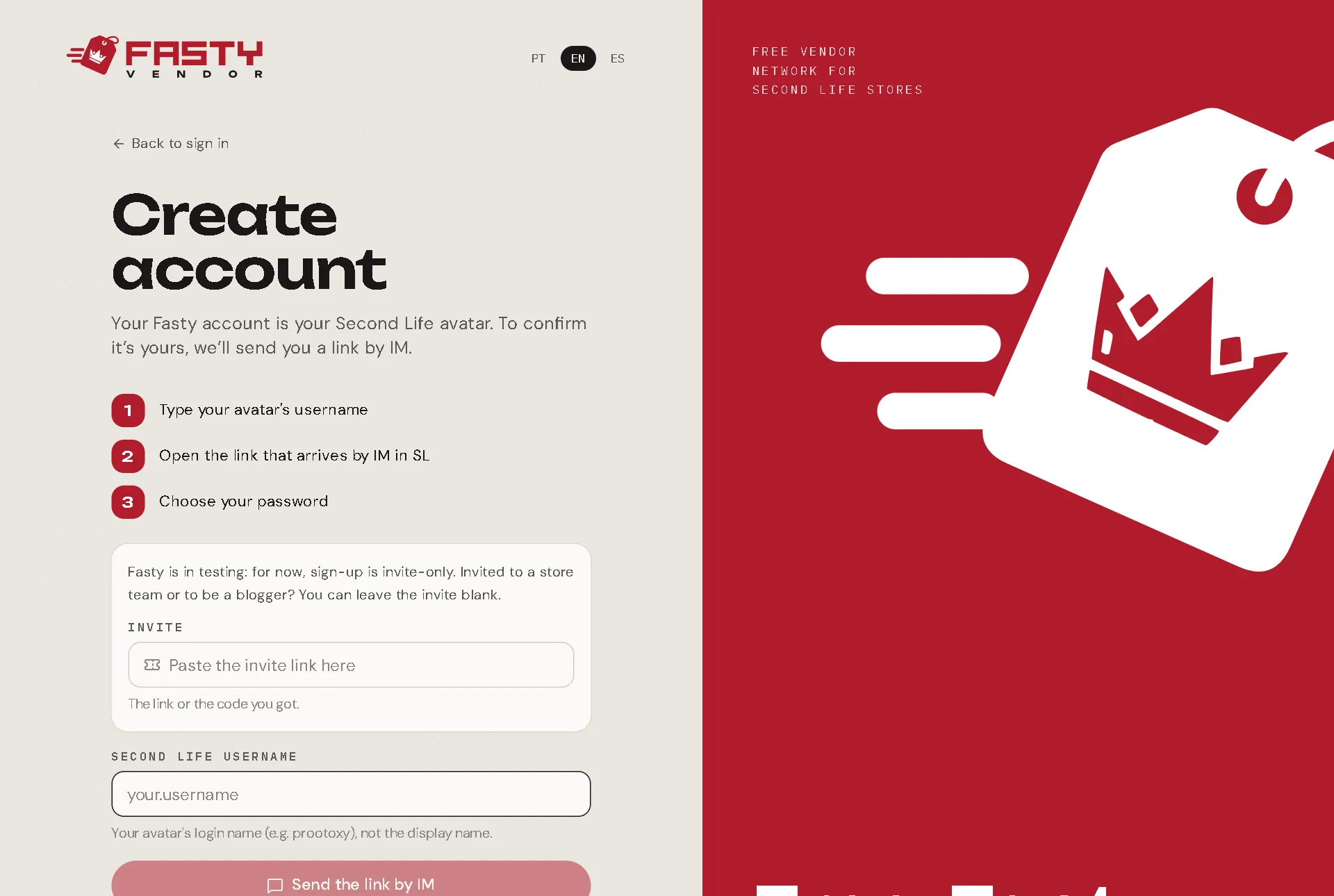
Go to app.fastyvendor.com/signup and type your Second Life username. That is your login name (like
john.doeorjohndoe), not your display name.Press Send the link by IM. Fasty sends a message to your avatar in Second Life with a link. The link works for 30 minutes, and only once.
Open the IM and click the link. It opens in the Second Life browser, or you can copy it to any browser you like.
Choose your password (at least 8 characters, typed twice) and press Create account and sign in. That's it.
What happens next depends on what you already have:
- You already set up a hub? Your account opens your store right away, and the welcome assistant helps you finish the setup.
- Nothing yet? Fasty asks what you want to do first: sell (it creates your store) or blog (it creates your blogger profile). You can skip it and choose later from your account menu.
Didn't get the IM?
Check that you typed the username, not the display name. If you are offline, the IM waits for you until you log in. You can ask for a new link after a minute; the new link cancels the old one.
Sign in
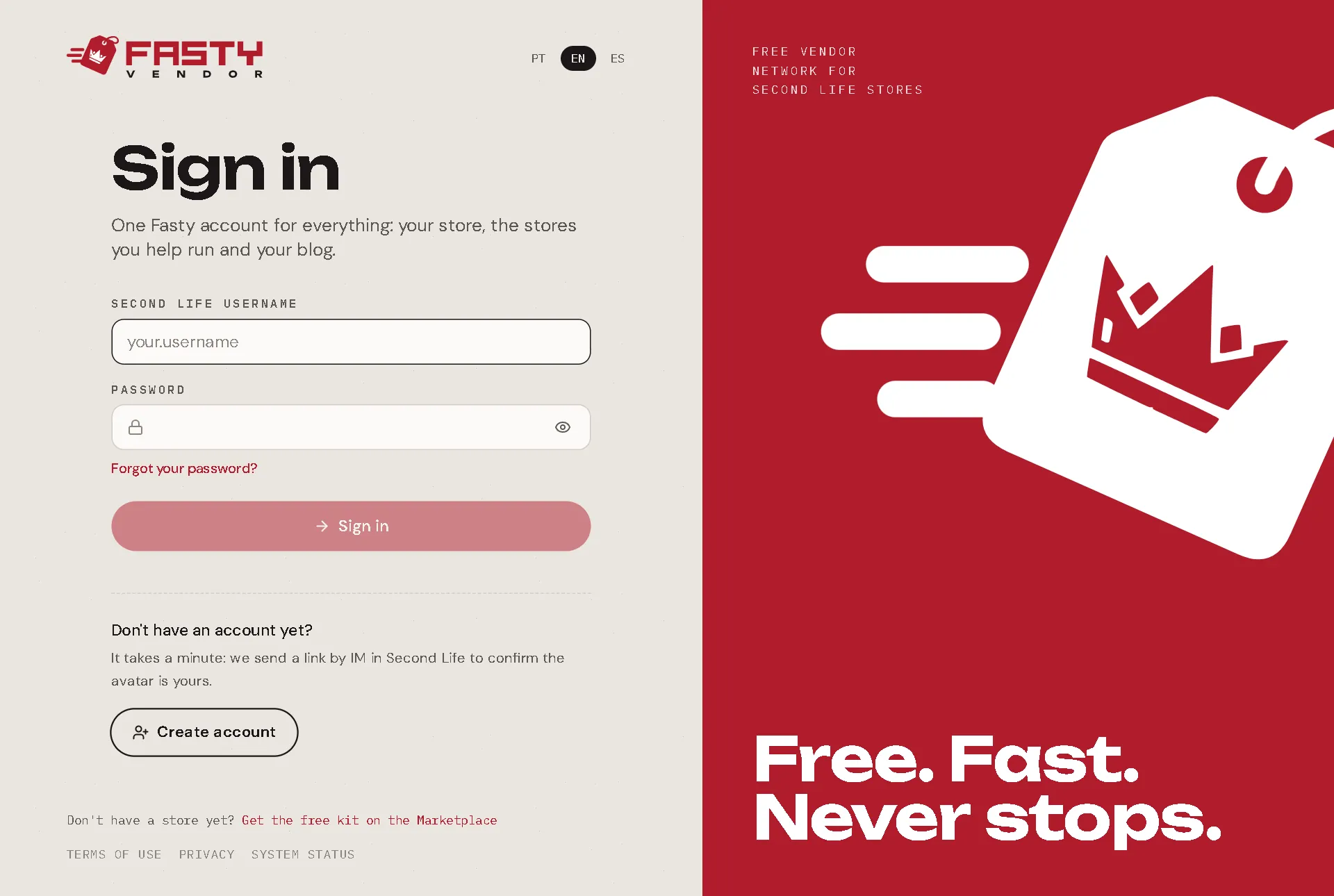
Go to app.fastyvendor.com and type your username and password. Touching your hub and choosing Open panel takes you to the same page.
You stay signed in on that browser as long as you keep using it. After 90 days without opening the panel, it asks for your password again.
Forgot your password?
On the sign-in page, choose Forgot your password? It works just like creating the account: type your username, open the link that arrives by IM, and choose a new password.
Saving the new password signs you out of every other device, in case someone else knew the old one.
Your account page
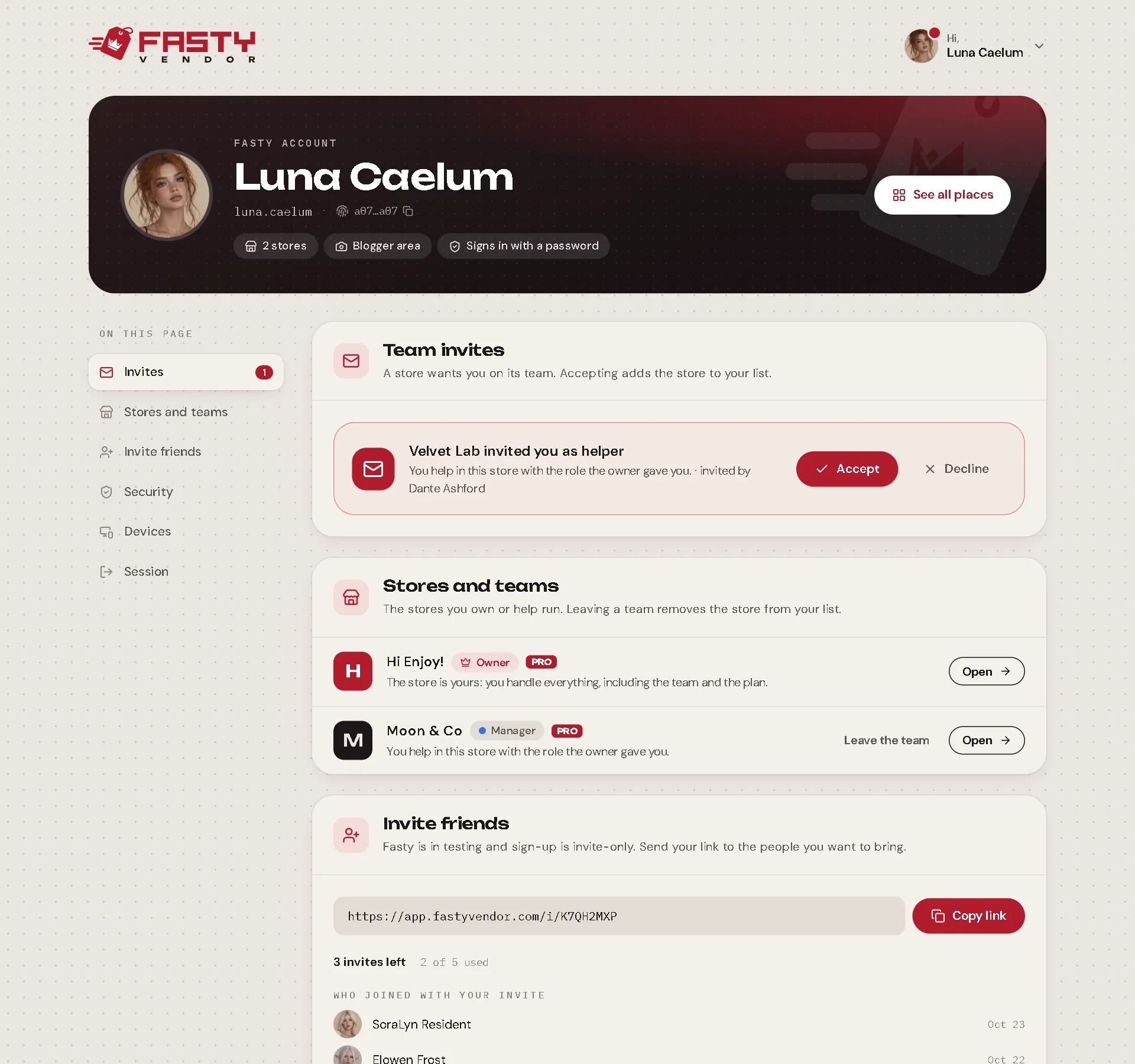
Click your picture in the top corner and choose Account. It has everything about you (not about your store):
| Section | What you can do |
|---|---|
| Invite friends | Copy your invite link, see who joined with it and how each bonus is going. |
| Stores and teams | See the stores you belong to and your role in each. Leave a team you no longer help. |
| Security | Change your password. You type the current one and the new one twice. Changing it signs out your other devices. |
| Devices | See every browser where your account is signed in. Sign out one you don't recognise, or press Sign out all other devices. |
| Session | Sign out of this device only. |
Invite friends
Bring a friend to Fasty and earn L$ 500 when they buy Fasty Pro.
Open your account and copy your link in Invite friends.
Send it to a friend. They sign up through it as usual.
When they buy Fasty Pro for the first time, your bonus starts. We review every bonus, and then it goes straight to your L$ balance in Second Life.
Invite friends shows who joined with your link and how each bonus is going.
| Status | Meaning |
|---|---|
| Joined | They signed up. The bonus comes with their first Pro purchase. |
| Bonus under review | They bought Pro, and we're checking it. |
| Bonus on its way | Approved. It reaches your L$ balance soon. |
| Bonus paid | It's in your balance. |
| No bonus | This one didn't qualify. |
The rules
- One bonus per friend, on their first Pro purchase. Renewals don't count.
- Your friend must sign up with your link before buying Pro.
- You can't invite yourself. Accounts made only to earn the bonus don't qualify.
- There's no limit to how many friends you can invite.
One account, several stores
A Second Life avatar can own one store, but it can be part of the team of other stores too, with the role each owner gives it. The account menu (your picture in the top corner) lists all of them with your role in each one. Click a store to switch: the panel opens that store's Home.
When a store invites you to its team, you get an IM, and the invite waits in your account menu until you accept it. Nobody joins a team without saying yes. See Your Team.
Keep your account safe
- Fasty never asks for your password by IM, in group chat or anywhere else. Only type it on app.fastyvendor.com.
- Use a password you don't use anywhere else in Second Life.
- If you think someone knows your password, change it: every other device is signed out at once.
- Codes that Fasty sends you by IM (for example, to create your sending PIN) are only for you. Never pass them on, not even to someone who says they are from Fasty.