
Coming from Allomancy
Moving from Allomancy does not mean starting from zero. The Import from Allomancy assistant reads your whole store with a read-only key: sales history, customers, products (with price, image and profit split) and vendors. There is nothing to download or paste. You go at your own pace: you can stop at any time and everything is saved. Allomancy keeps selling until you swap your vendors at the very end.
Open it from Sales → Import from Allomancy (Home also shows a Coming from Casper or Allomancy? card while you have not used it).
The steps
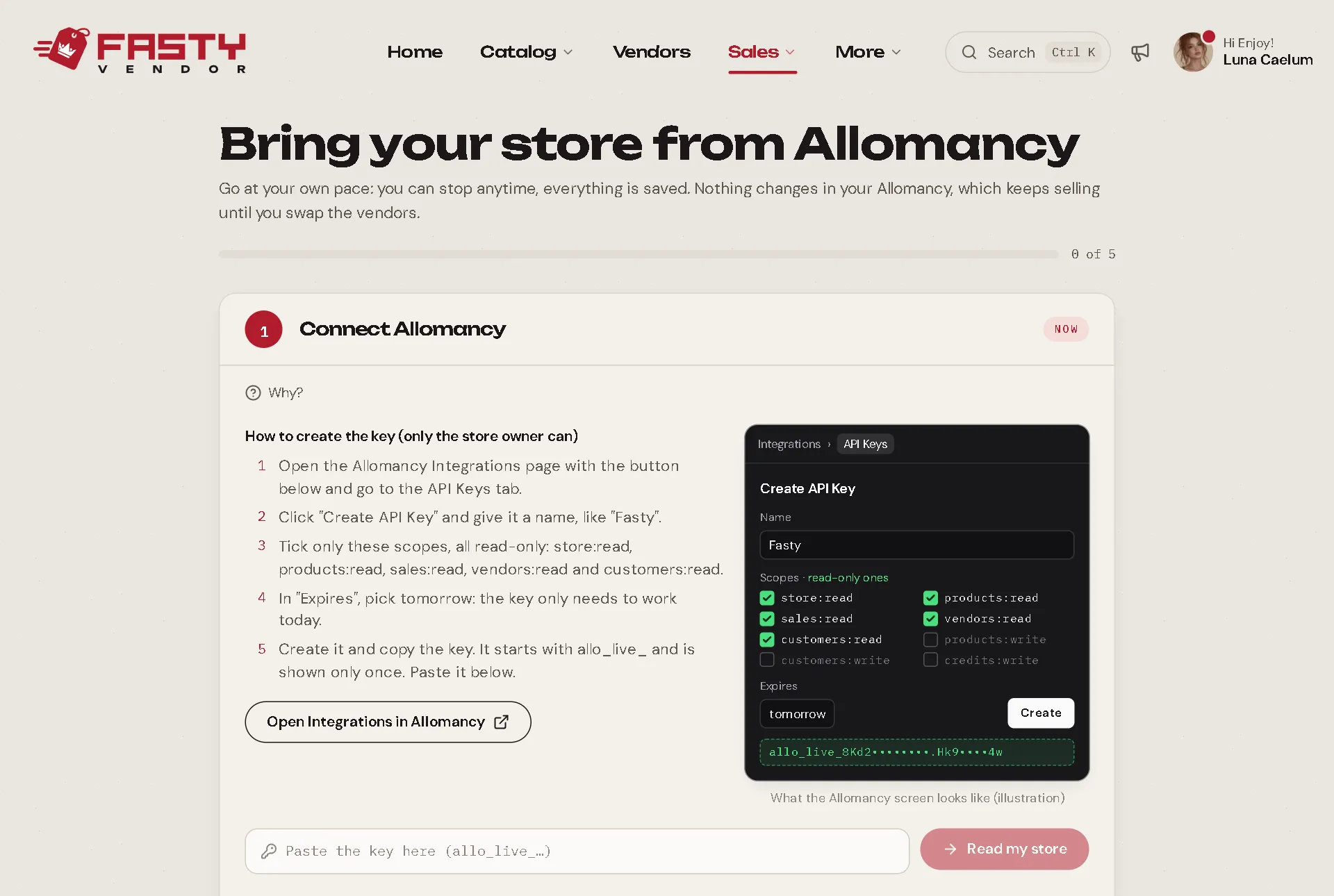
1. Connect Allomancy
Only the store owner can create the key, in Allomancy's Integrations page.
Open Allomancy's Integrations page (the assistant has a button for it) and go to the API Keys tab.
Click Create API Key and give it a name, like Fasty.
Tick only the read scopes:
store:read,products:read,sales:read,vendors:readandcustomers:read. Leave every write scope unticked.In Expires, pick tomorrow: the key only needs to work today.
Create it, copy the key (it starts with
allo_live_and is shown only once) and paste it in the assistant. Press Read my store.
Your key is never stored
The key is used only for this read and is never saved anywhere. It can only read: nothing changes in Allomancy. When you are done, you can delete it there (Revoke).
The read runs in the background, and you can leave the page. Big stores take a few minutes. Then Fasty shows how many sales and customers it found, the period, and what it left out on purpose: your own test purchases, redeliveries, payment terminal payments, deleted or failed sales and repeated lines.
- Sold more since? Read again with a new key: only the new sales come in.
- Also coming from Casper? Sales that came into Allomancy from Casper are recognised. Import Casper first, then read Allomancy: those sales are left out, so nothing repeats.
- Missing scope? If the key could not read products, vendors or customers, the assistant says what is missing. Create another key with those scopes and read again.
Imported sales are history only: they don't deliver anything, don't give points and don't pay profit shares. They are there so your customers can redeliver and your reports are complete.
2. Put the hub in your Dispenser
Your Allomancy Dispenser already holds all your items. Drop the Fasty Hub script into it (don't remove Allomancy's script: both work together) and Fasty learns every item at once. The assistant follows it live and tells you which products still have no item. Rather not touch the Dispenser? Put the hub script in a new box with the same items.
3. Check your products
Each product in your history is matched with the item Allomancy delivered, so almost everything matches by itself. Only the products that need you appear here: pick the item, or leave the product out (its sales don't come in).
4. Import
Press Import. It runs in the background, in batches, and you can leave the page. Undo the import removes the imported sales again (except the ones a customer already asked to redeliver).
5. Prices, images and profit splits
The read already brought each Allomancy product's price, image and profit split. You see a preview before anything changes: choose what to bring and apply. Images only fill products that have none, unless you ask to replace them. Paused products come with their price, but not for sale. Undo puts every product back as it was.
6. Banned customers, credit and gift cards
- Banned customers: if someone is banned in Allomancy, press Block in Fasty too. A blocked customer can't buy from your store, and their L$ goes back to them. You can unblock anyone in Customers → Blocked.
- Store credit and gift cards are your customers' money. They don't come to Fasty yet: the assistant shows how much there is. Keep them valid in Allomancy for now, so whoever has a balance keeps using it there.
7. Swap your vendors
Your Allomancy vendors stay the same objects, with the same look. Only the script changes:
Get the
Fasty Vendorscript from the Fasty folder in your inventory.In each Allomancy vendor: Edit → Content and drag
Fasty Vendorin. It removes the Allomancy script by itself and tells you in chat. The look, textures and position stay the same.Accept the debit permission request. Then the vendor connects to your store on its own.
Fasty picks the product from the vendor's name. Allomancy names each vendor after its product, so almost all of them set themselves up. The assistant shows how many will match before you start.
From that moment, new sales come into Fasty. Check Sales and Vendors to see everything that came in.
Only one system per vendor
Fasty Vendor removes any script with "allomancy" in its name from the same prim, so only one system answers the payment. If you still see an Allomancy script in the Content tab, your copy of Fasty Vendor is older: delete the Allomancy script by hand, or get the kit again.
Coming from CasperVend instead?
See Coming from CasperVend: same steps, with your sales file and your customers' gift cards.