
The Panel
The panel is your store in the browser: app.fastyvendor.com. It updates live: when a customer pays a vendor, the sale shows up without refreshing the page. It also works on a phone.
The menu at the top has five areas: Home, Catalog, Vendors, Sales and More. Catalog, Sales and More open a small menu, with one line under each screen saying what it is for. The megaphone next to it shows what's new in Fasty. Your avatar (top right) opens the account menu: every store you run or help run, your blogger area, Send L$, Account, Store settings, the language, the theme and Sign out. On a phone, the bottom bar has Home, Products, Vendors and Sales, and More has the rest.
Home
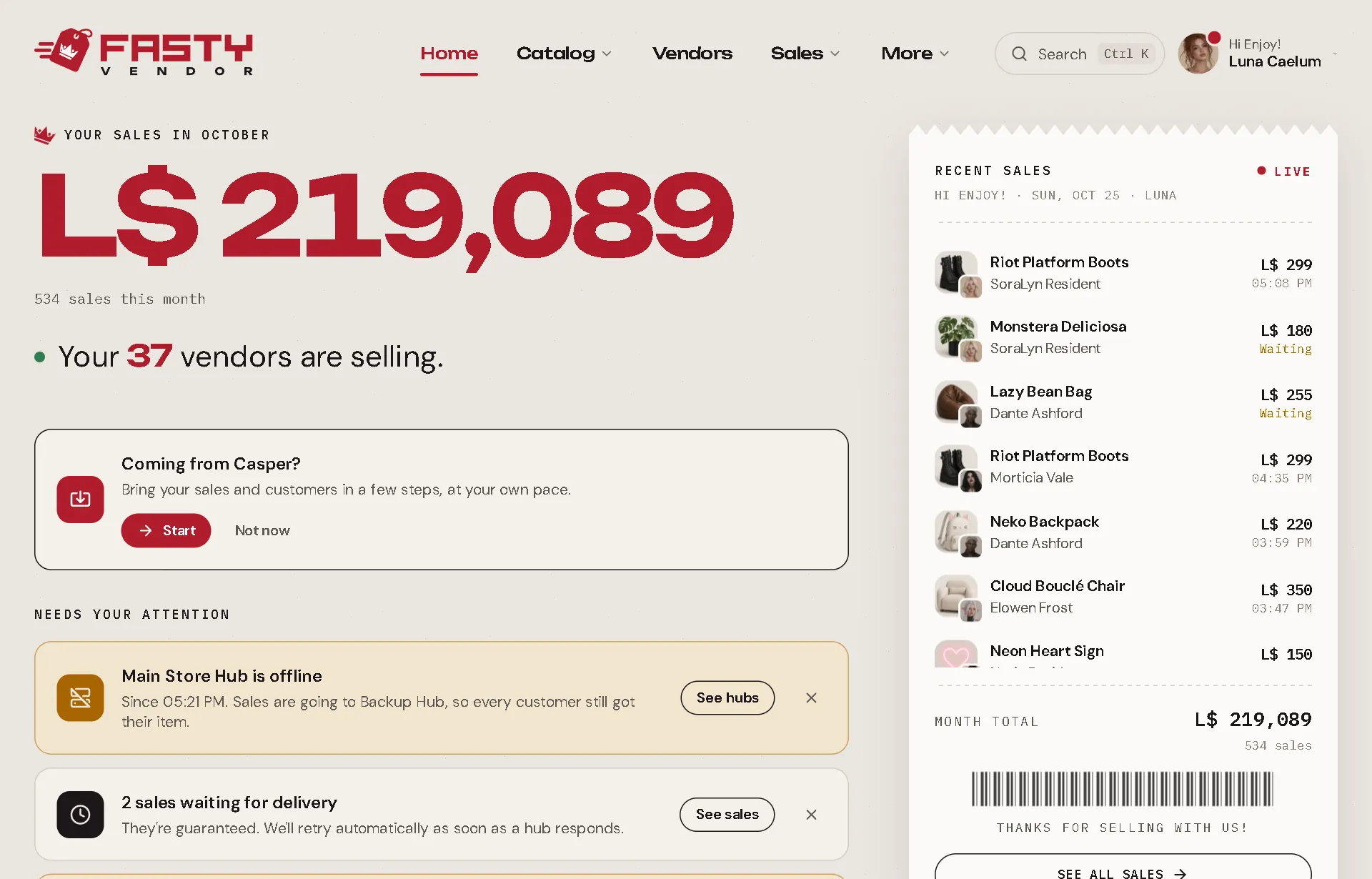
- Your sales this month, in big numbers, compared with last month up to the same day, and how many vendors are selling.
- The month, day by day: one bar per day, today in red, with your daily average. Hover a bar to see that day.
- Best sellers this month.
- Recent sales, printed like a shop receipt, with a Live dot. Waiting sales show Waiting in amber.
- Needs your attention: only the things you should act on. For example, a hub that went offline (and which hub is covering for it), sales waiting for delivery, or an item without copy permission. Each card has a button that takes you to the fix.
A brand-new store also sees an invite to the welcome wizard (below).
Catalog
| Screen | What it is for |
|---|---|
| Products | Every item in your hubs, as a price tag. Prices, names, categories, groups. |
| Gacha PRO | Your gacha machines and the collections they draw from. |
| Updates | Send a new version of a product to everyone who already bought it. |
Vendors
Your hubs at the top, then every vendor, by region (with a little map of where each one is) or By product (which products have a vendor and which don't). See Vendors.
Sales
| Screen | What it is for |
|---|---|
| Sales | Every sale with its full story, live. |
| Reports | Your store over a period, compared with the period before (below). |
| Payments PRO | Events, memberships and services paid at your vendors, in rounds. |
| Customers | Everyone who bought from you, how much and what. Where you block a customer. |
| Import from Casper | Bring your sales and customers from CasperVend. |
| Import from Allomancy | Bring your sales, customers and products from Allomancy, with a read-only key. |
Reports
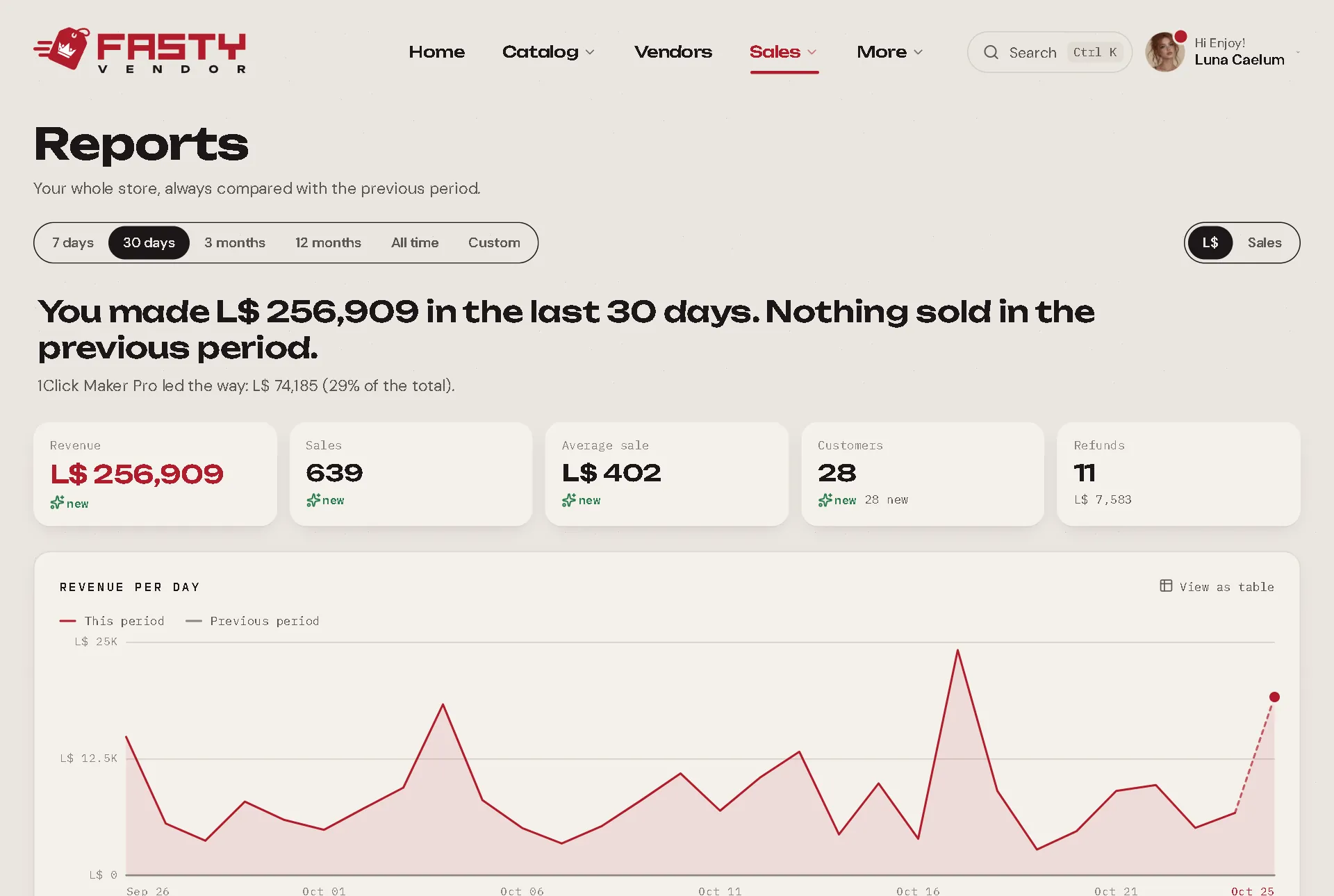
Pick a period (7 days, 30 days, 3 months, 12 months or all time) and switch between L$ and number of sales. Each part starts with a sentence that answers the question, and the chart comes after so you can check it: "You made L$ 48,200 in the last 30 days, 12% more than the previous period."
- For everyone: revenue, what you received after profit splits, sales, average sale, customers (and how many are new), refunds, the trend against the previous period, What sells (including products that stopped selling) and Where it sells.
- With Pro PRO: When it sells, Who buys, How they pay, a custom period and Export CSV with every sale of the period.
More
| Screen | What it is for |
|---|---|
| Discounts | Timed sales: the whole store, some products or all but a few. |
| Points PRO | Loyalty points and the rewards shop. |
| Gift cards PRO | Store credit your customers can buy and give. |
| Coupons PRO | Discount codes, single-use batches and freebies. |
| Giveaways PRO | Fair giveaways, drawn live on a public link. |
| Bloggers | Your blogger team: products, posts and deadlines. |
Settings
| Section | What is there |
|---|---|
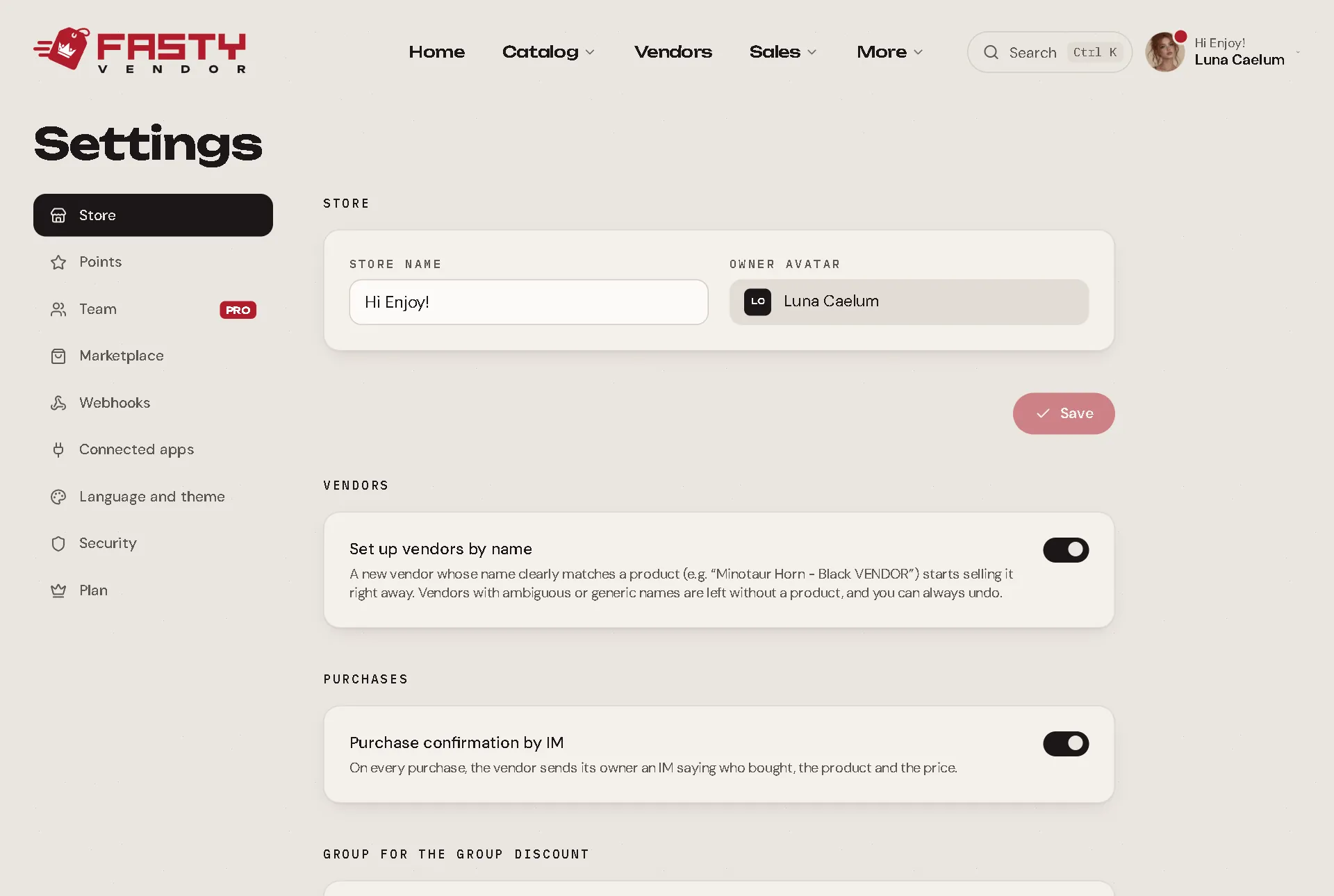
| Store | Store name, your store brand, set up vendors by name, the purchase confirmation by IM, the group for the group discount and a button to open the welcome wizard again. |
| Points | The rules of your points program. |
| Team PRO | Who helps you run the store. See Your Team. |
| Marketplace | Connect your Second Life Marketplace sales. See Marketplace Sales. |
| Webhooks PRO | Discord alerts and JSON notices. See Discord & Webhooks. |
| Connected apps | Apps you connected to your store with Connect with Fasty (for example a gacha platform that delivers its prizes through your hubs): since when, who connected it, the products in use and its sales. Only the owner connects or Disconnects an app. An app never sees your prices, vendors or L$. |
| API PRO | Keys for the Fasty API. Only the owner sees it. |
| Language and theme | English, Português or Español; light, dark or match your system. |
| Security | A shortcut to your account, where your password and signed-in devices live. See Your Account. |
| Plan | Basic or Pro, where to buy Pro and your purchases. See Basic vs Pro. |
Store brand
Settings → Store → Store brand puts your identity on Fasty, on every plan:
- Logo: paste the UUID of the logo texture. A transparent background looks best. It shows on the pages your customers open.
- Main color: buttons, highlights, menus and charts, in the panel and on those pages.
- Accent color: gradients and details, like gift cards and the wallet. On Automatic, it's a darker shade of the main color.
Your customers see it on the receipt, their purchases page, gift cards, the wallet and giveaways. The panel's header always keeps the Fasty logo. The colors show while you pick them, and go back if you leave without saving.
The welcome wizard
A new store gets an invite on Home to get the store ready in a few minutes. Six short steps, all optional: a welcome, your store name, Coming from Casper?, Marketplace, vendors, and done. Skip what you want: everything is also in Settings. To see it again, go to Settings → Store → Open the wizard.
What's new
The megaphone at the top of the panel, between the search and your picture, is where Fasty tells you what changed: new features, improvements, fixes and notices, with pictures and videos. A red dot means there is something you haven't seen.
When we publish something important, it opens by itself the next time you open the panel, once. Close it and it won't come back, not even on your phone: what you've seen is saved in your account, not in the browser. If several piled up, they open together, one after the other. Everything stays under the megaphone, with filters by type.
A new account doesn't get the old announcements thrown at it: they're just there to read.
Search everything: Ctrl+K
Press Ctrl+K anywhere in the panel to search products, customers, sales and screens. It also has shortcuts like Create sale and Create coupon.
Product sheets open anywhere
Click a product name anywhere in the panel (a sale, a customer page, the receipt on Home) and its sheet opens on the right. You can read and edit it without leaving the screen you were on. The browser's Back button closes it.