Assets
If you have built HUDs the old way, you know the ritual: open a texture, copy its UUID, paste it in a notecard, repeat two hundred times, and then discover the notecard is readable by anyone who opens the HUD.
1Click Maker replaces that with assets: drop the files into the HUD, press one button, and pick them from a gallery.
What counts as an asset
| Type | Used by | Notes |
|---|---|---|
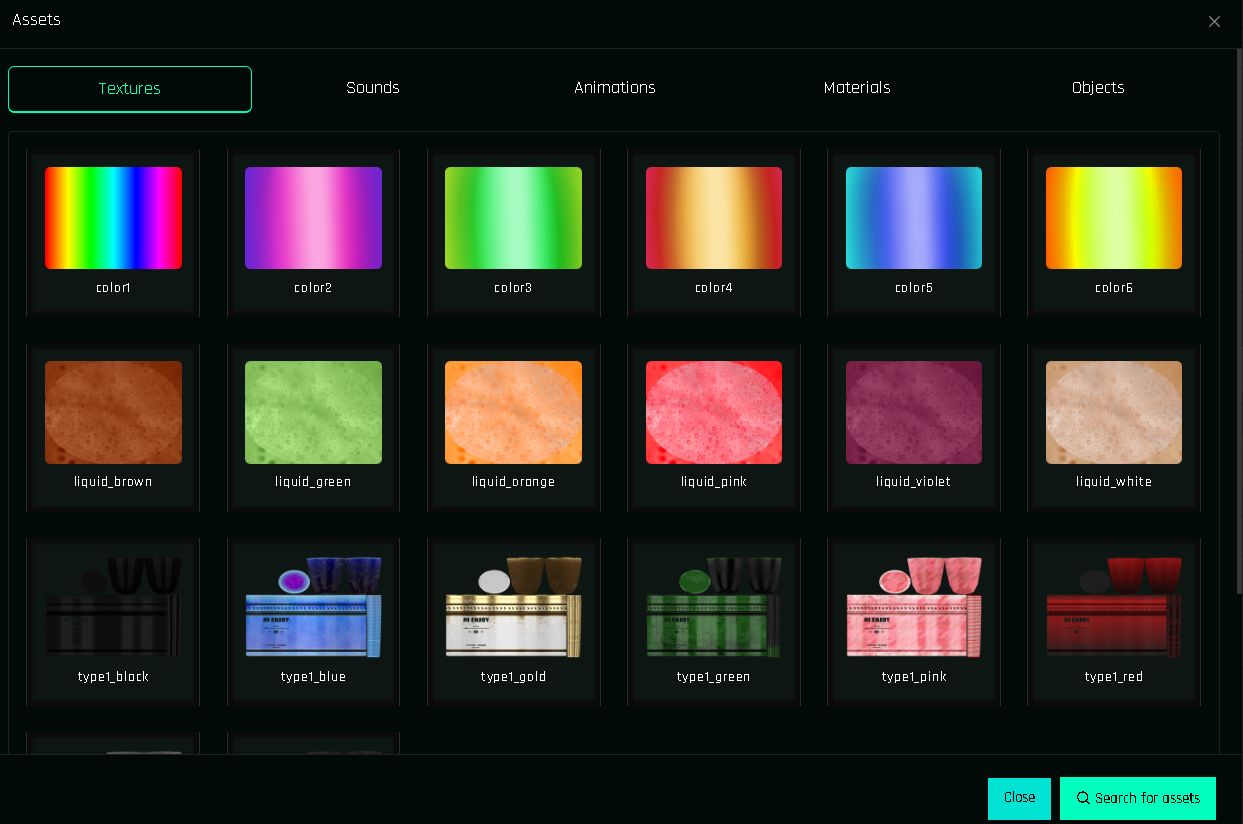
| Textures | Blinn-Phong (diffuse, normal, specular), PBR Custom maps | Shown as thumbnails |
| Materials | Material PBR | PBR materials created in the SL build tool |
| Sounds | Sound | |
| Animations | Animation, Object Animation | The animation must stay in the object that plays it |
| Objects | Give Items | Delivered to the owner |
| Others | Give Items | Notecards, landmarks and anything else |
How it works
Drag the files from your inventory into the HUD's Content tab (the HUD is on the ground).
In the panel, open Assets and click Search for assets. The HUD reads its Content and reports every item with its UUID and name.
Pick assets in any action form by clicking the image slot, or straight from a function card with Quick Swap.
Full walkthrough in Inserting Assets.
Are my assets safe?
While you build, yes, the HUD holds copies of your textures and sounds. That is only for you, on the ground. When you press Finish:
- every texture, sound, material and object is removed from the HUD's Content (animations stay, they must be in the object to play),
- the actions keep only the UUIDs, stored inside the scripts' protected memory,
- nobody can open the finished HUD and pull your textures out of it.
Keep one working copy
Finish deletes the assets from that object. Your inventory still has the originals, and the project in the cloud remembers every UUID. Reopening the project with EDIT does not require re-adding the assets unless you want to scan new ones.
Local vs. Storage
The dropdown in the assets window switches between Local (assets found in this HUD by the last scan) and Storage (assets saved to your account, shared across projects). Use Storage for textures you reuse in many products.
Memory cost
Assets themselves cost almost nothing; the actions that use them are what count. An action referencing a texture stores its UUID (36 characters) once, even if fifty buttons use the same texture. See Memory.