Creating a Variable
Click the orange tools button in the bottom-left corner of the panel, then the
{ }button that appears.
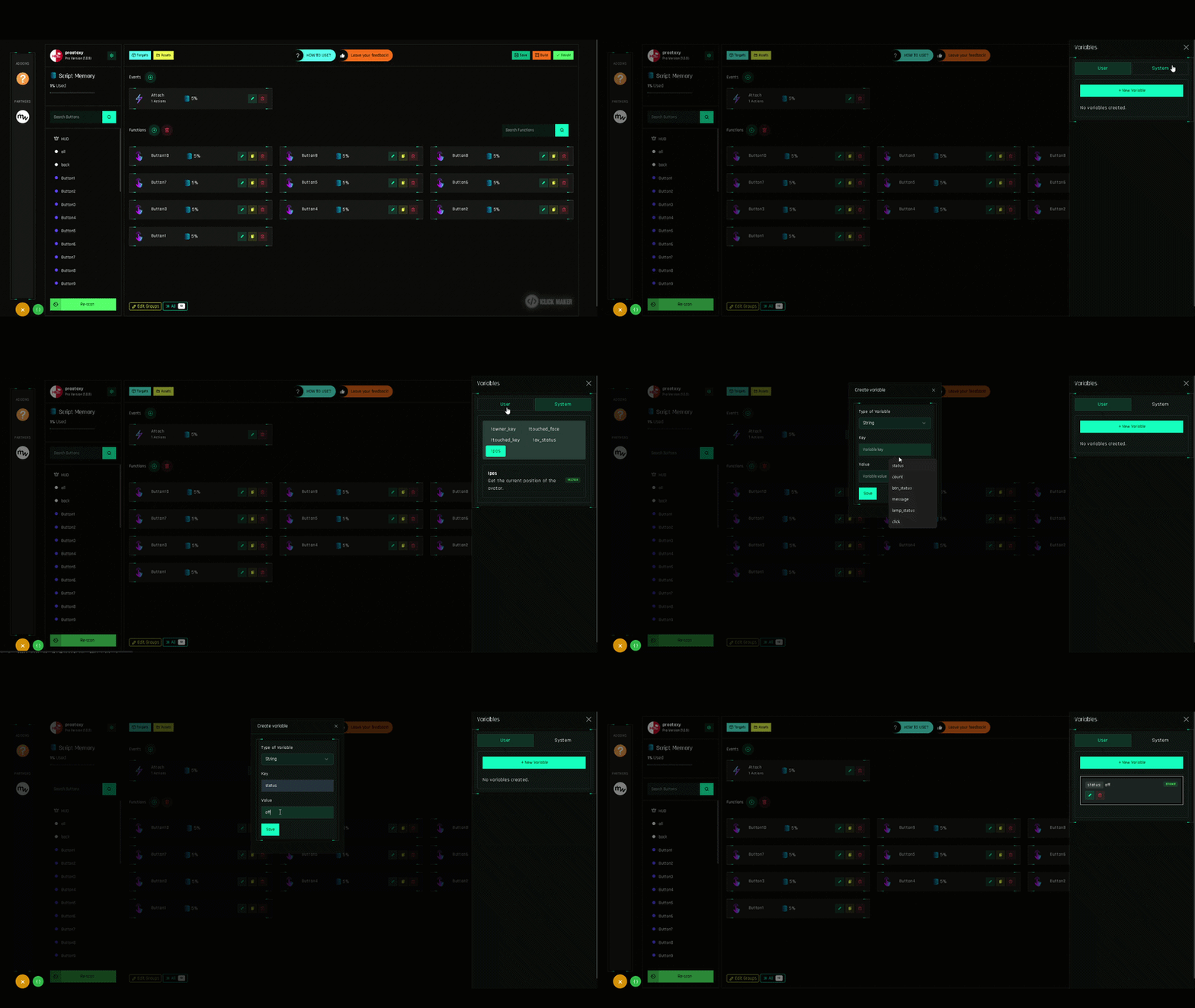
The tools button expands to show the variables button. The Object Variables panel slides in from the right. Stay on the User tab and click Create New Variable.
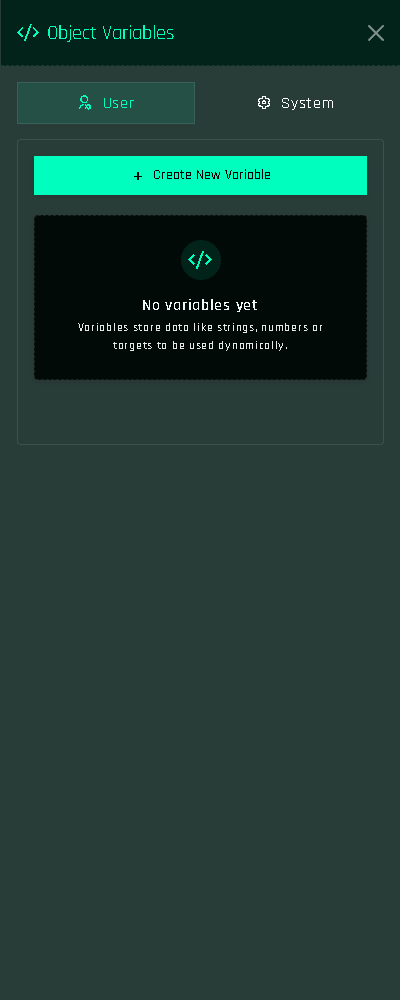
The Object Variables panel. Fill in the three fields:
Field Notes Type String, Integer, Float, Vector or Key. See User Variables. Name Unique, up to 30 characters, letters/numbers/ _. Do not type the$; the panel adds it.Initial value The value the variable has when the project is built. Must match the type. Confirm. The variable is listed in the panel; you can edit or delete it there at any time.
Save and Build so the object knows about it.
Using it
- In a Condition, type
$in the Field or Value box: an autocomplete lists your variables. - In Change Variable, pick it from the dropdown.
Deleting a variable that is in use
Conditions and Change Variable actions that reference a deleted variable keep the text ($name) but will never match. Update or delete those actions.